Stop guessing which port it’s on: a tour of the new Rack Manager
Every colocation customer knows the moment: a server needs attention, a remote-hands ticket is open, and the question comes back, “which unit is it in, and which port is it on?” If the answer lives in a spreadsheet from last year, that moment gets expensive.
Rack Manager, now in the Nuday portal, is built to make that question boring. It has two views, Rack view and Network view. Here’s a tour of both, and how to get the most out of them.
1. Rack view: your racks, drawn to the U
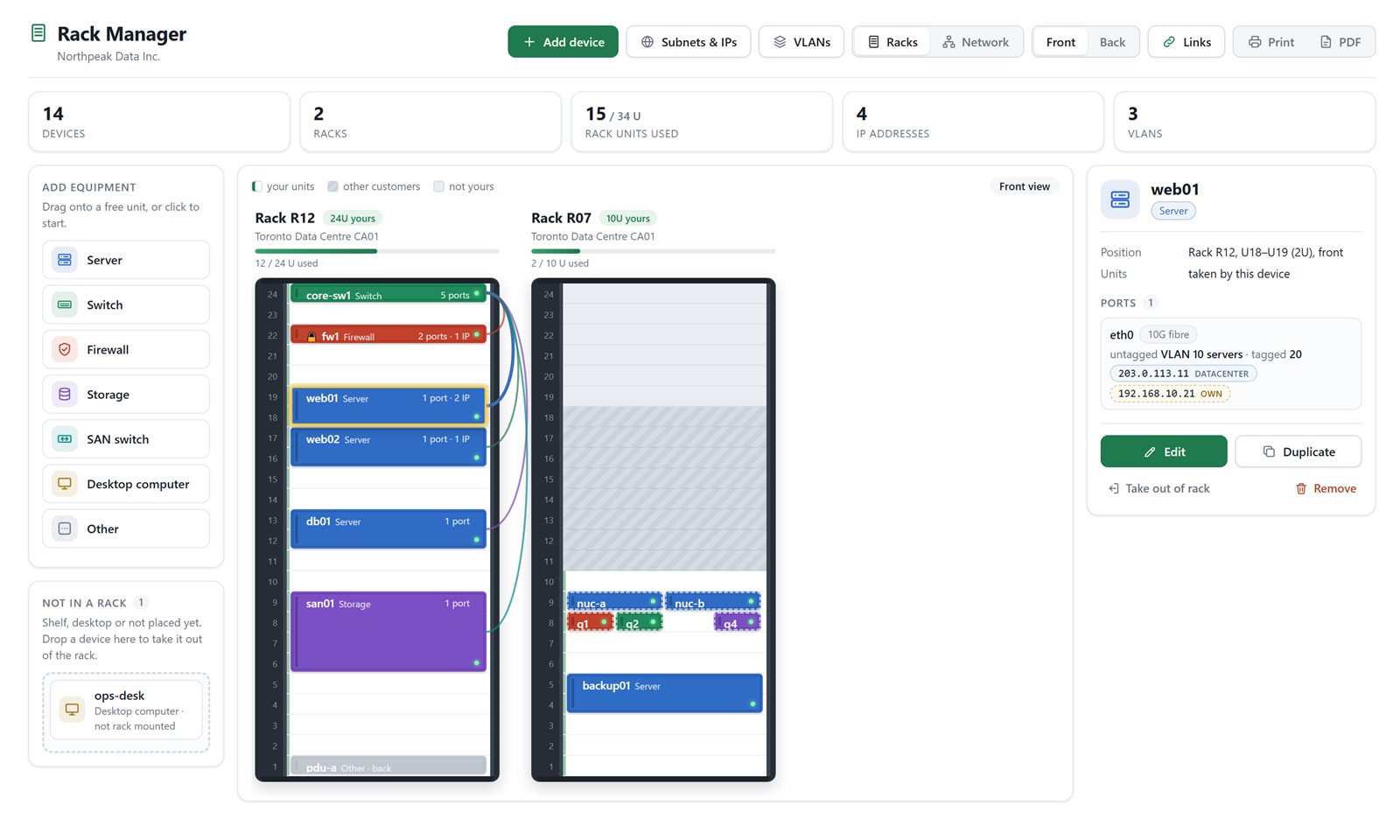
Open Rack Manager from the portal menu and you’ll see every rack where you have space, front or back. Your units are marked, so it’s always clear what’s yours, and a bar under each rack shows how full it is. Click any device to see its details on the right: position, ports, links, VLANs and addresses.
Rack view
Moving things around is drag and drop. Drag a device to a new unit and Rack Manager checks the space is free first. Drop it on Not in a rack to park it on a shelf.
2. Network view: the whole network on one map
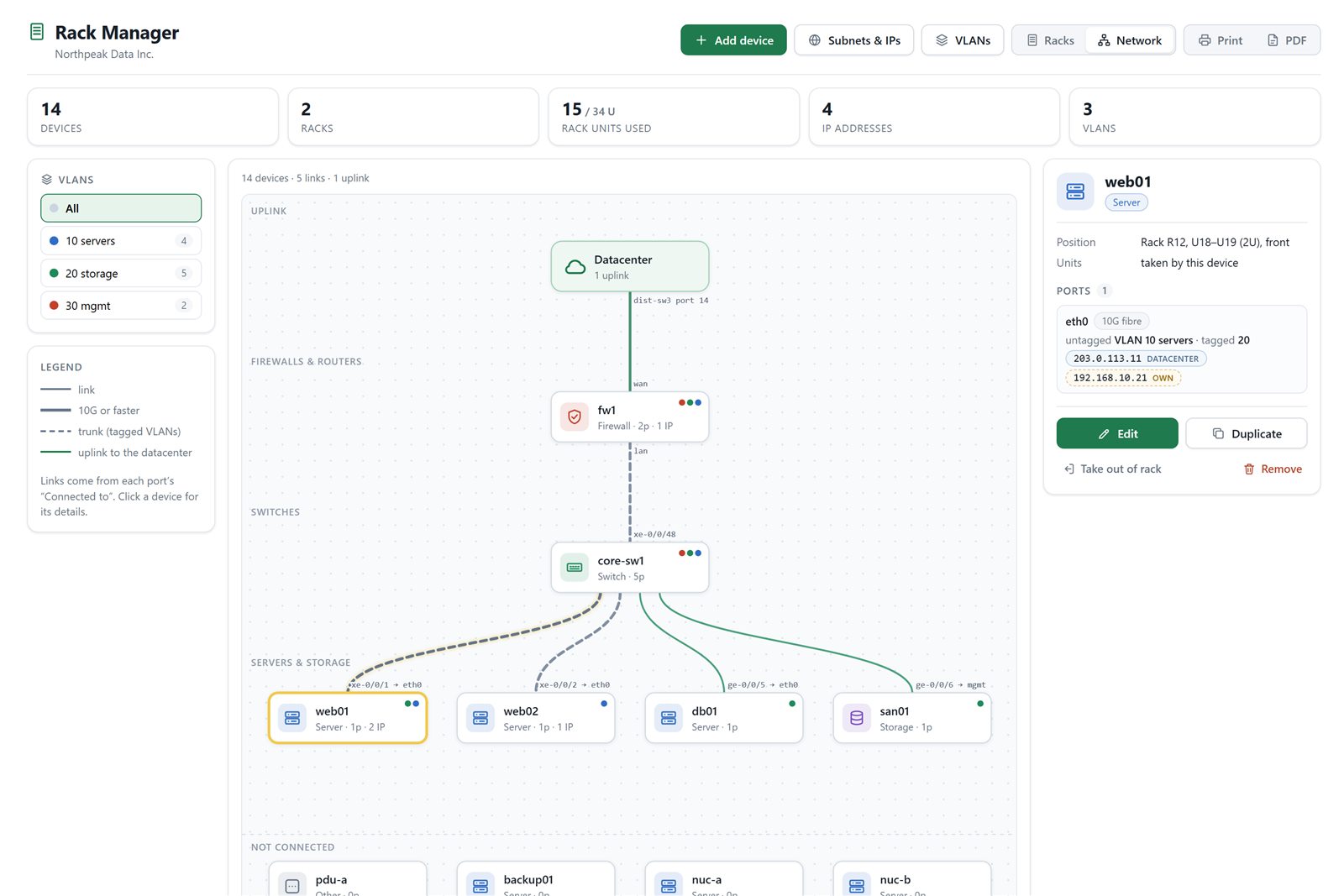
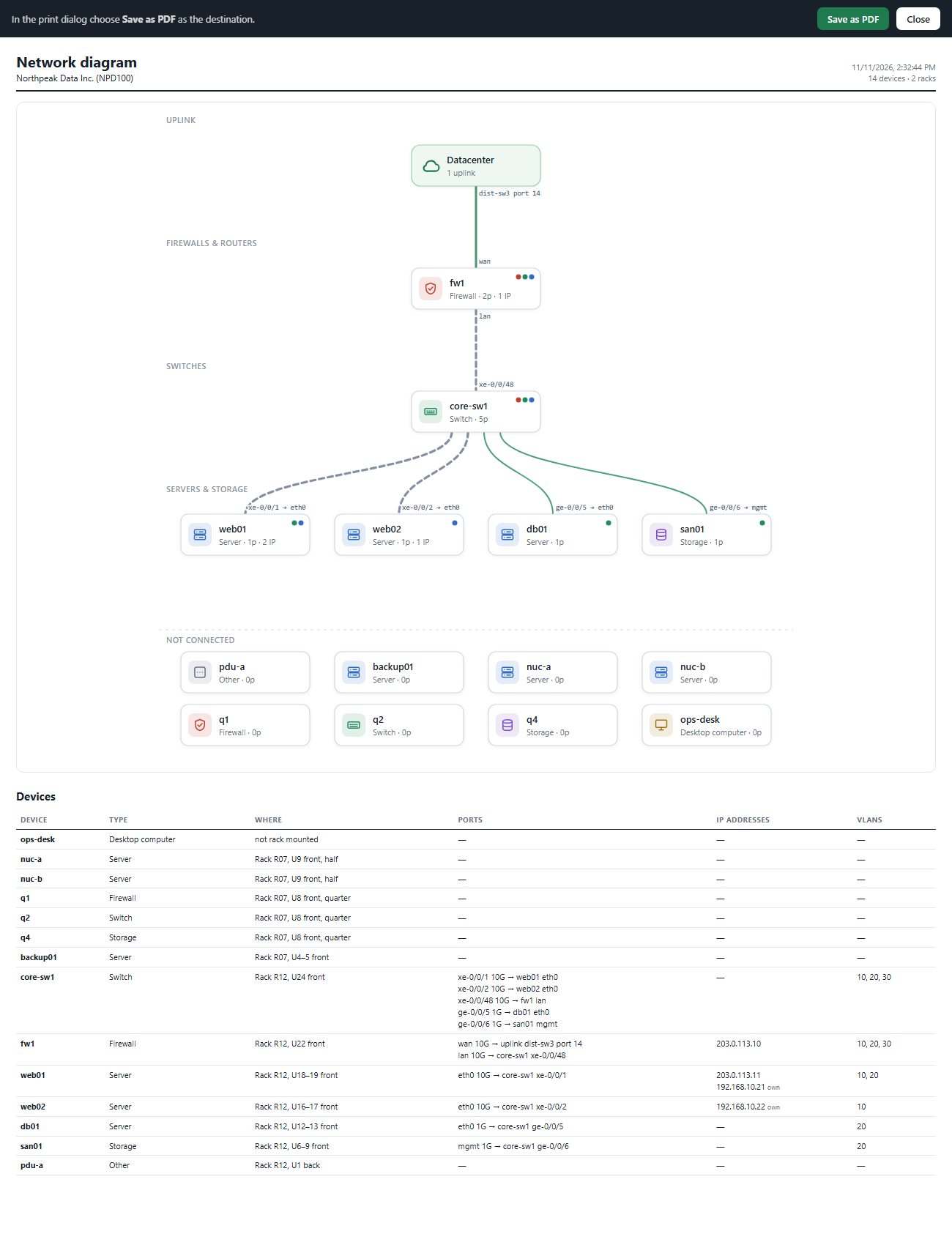
Switch from Racks to Network and Rack Manager draws your topology automatically: the datacenter uplink at the top, then firewalls, switches and servers, joined by the actual port connections you’ve recorded. Thick lines are 10G and faster, dashed lines are trunks. Pick a VLAN on the left to light up only the devices and links that carry it.
Network view
3. Adding a device takes five short steps
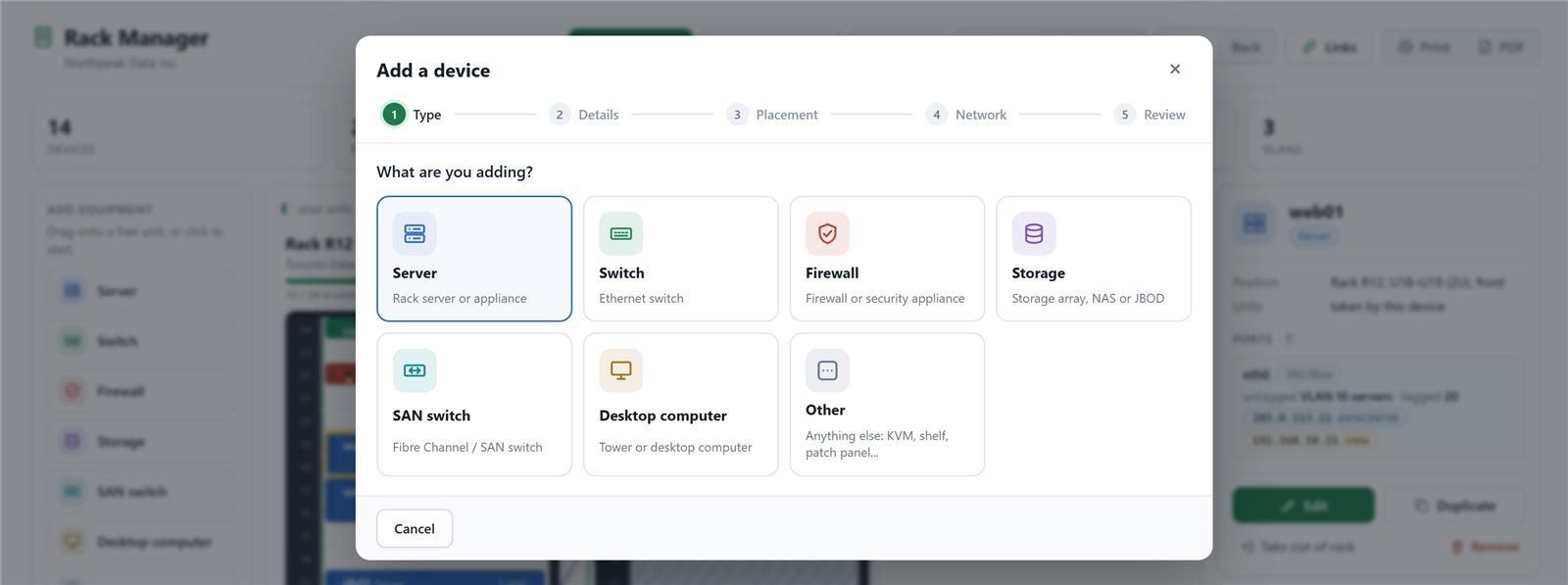
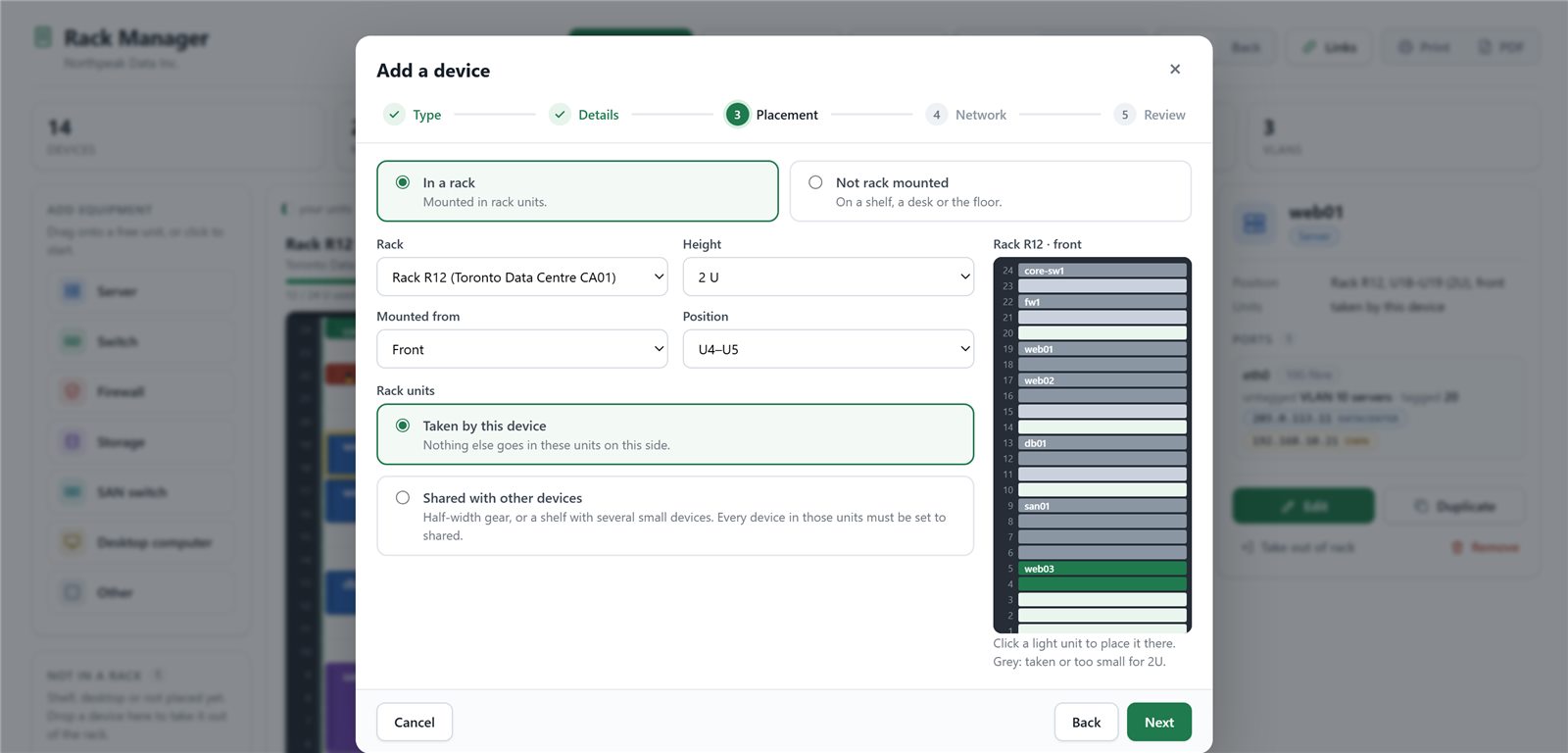
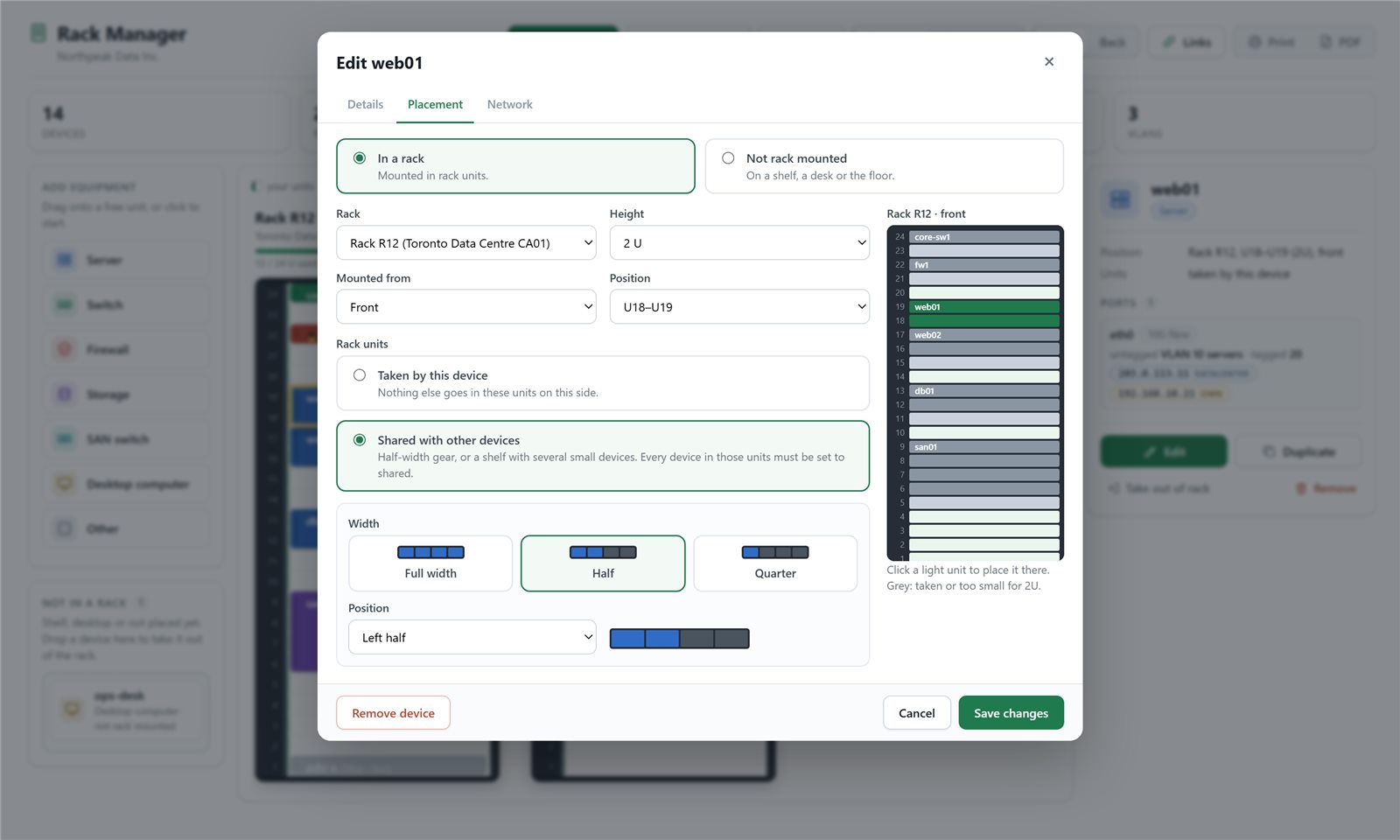
Click Add device and a wizard walks you through it: Type → Details → Placement → Network → Review. Choose what it is, give it a name, then pick its spot on a small picture of the rack. Free units are highlighted; one click places it.
Tip: adding several identical machines? Add one, then use Duplicate. You get “web01 2”, “web01 3” and so on, with the same ports already set up and placed in the next free spot. IPs and cables aren’t copied, so nothing clashes.
4. Half-width and quarter-width gear
Not everything is a full 19-inch server. Mark a device as shared and choose full, half or quarter width, then pick its position. Two half-width nodes sit side by side; four small appliances share a single unit. Rack Manager only stops you when two devices would really occupy the same spot.
5. Ports, VLANs and IPs, in one card
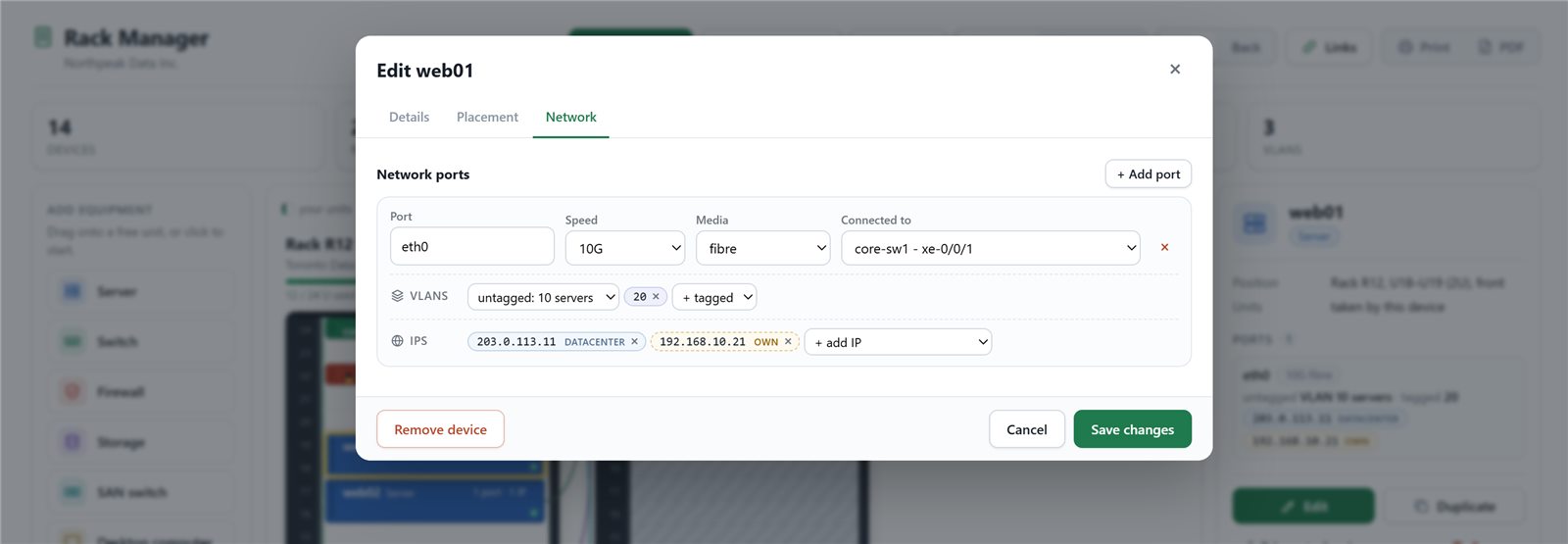
Each port gets its own card: speed, media, and what it’s connected to on another of your devices. Set the untagged VLAN (VLAN 0 is the default) and any tagged VLANs it carries. Then attach IP addresses:
Datacenter addresses come from the IP ranges we’ve assigned to your Internet service. Pick a free one from the list.
Own addresses are your internal or third-party ranges. Add them under Subnets & IPs and use them anywhere.
Every address is labelled datacenter or own, so you always know which ones we manage and which are yours.
6. Print it, or keep a PDF
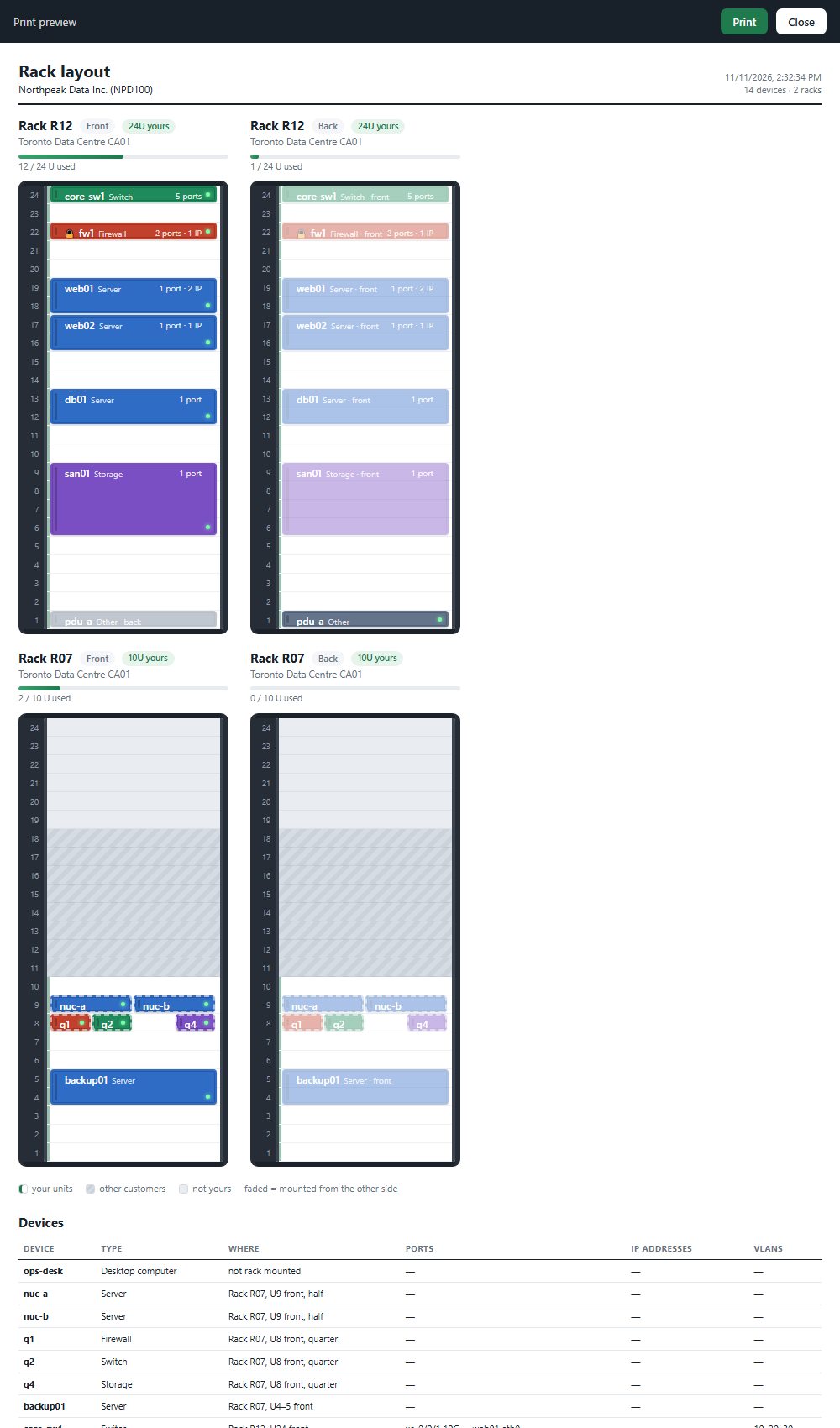
Audits, insurance, a handover to a new engineer: sometimes you need it on paper. The Print and PDF buttons produce a clean sheet of whichever view you’re in: every rack front and back, or the network diagram, followed by a full device list with ports, connections, IPs and VLANs.
Printed rack layoutPrinted network diagram
Better support, too
Our team sees exactly the same Rack Manager you do. When you open a ticket or call us, we’re looking at the same rack, the same port and the same cable, and that makes remote hands faster and safer.
Get started
Rack Manager is available now to Nuday colocation customers. Sign in at portal.nuday.com, open Rack Manager, and add your first device. Questions or ideas? Contact our support team. We’d love to hear what you’d like to see next.